How to Add Reviews to Shopify: Every Option Explained
How to add reviews to Shopify: Shop product reviews, review apps and theme blocks, CSV migration and labeled supplier imports, with steps and trade-offs.
There are four legitimate ways to add reviews to Shopify: 1) Shopify's own Shop product reviews, 2) a review app plus its theme app block, 3) a CSV migration of reviews you already own, and 4) a labeled import from the supplier listing of the identical product you sell. The right one depends on where your reviews will come from.
This guide walks through each option: how to set it up, what shoppers actually see, and where it falls short. It also covers star ratings on collection pages, what Google will and won't show in search results, and a compliance checklist to run before any review goes live.
Quick answer: the options at a glance
| Option | Where reviews come from | Shows on your product page? | Best for | Main trade-off |
|---|---|---|---|---|
| Shop product reviews | Shop app users who bought the product from you | No, they appear in the Shop app | Every store, as a baseline | Doesn't put reviews on your own theme by itself |
| Review app + theme app block | Your customers, via review request emails | Yes | Stores with steady orders | Takes weeks or months of orders to build up |
| CSV migration | Reviews you already collected elsewhere | Yes, through the new app | Stores switching apps or replatforming | Only works if you have reviews to move |
| Labeled supplier import | Buyers of the identical product on the marketplace you source from | Yes, with a source label | New stores and dropshippers | Must be the same product, unedited and clearly labeled |
Most stores end up combining two of these: a review app that collects reviews from their own customers, plus either migrated reviews or labeled supplier reviews to cover the months before their own reviews arrive.
Option 1: Shop product reviews (Shopify's own)
Shopify no longer offers its old free Product Reviews app, which was removed in May 2024. What Shopify runs today is Shop product reviews, which is part of the Shop sales channel.
How it works:
- After an order is delivered, Shop customers get a notification asking them to review what they bought.
- Only Shop customers who bought the product from you can leave a review: a 1 to 5 star rating and an optional comment of up to 1,000 characters.
- Shopify screens reviews against its Shop product review policies before they're published.
- You manage them in your admin under Sales channels > Shop > Reviews, where you can reply to a review or report one.
What shoppers see: the reviews and average rating appear on your product's page inside the Shop app. They don't appear on your online store's product pages by themselves.
The useful detail most guides skip: Shopify syncs Shop product reviews both ways with five partner apps: Judge.me, Loox, Okendo, Stamped and Yotpo, according to Shopify's partner app sync page. Reviews collected in one of those apps can show in Shop, and Shop reviews are shared back to the app, which can then display them on your theme. There are conditions: a review needs a customer ID, order ID and product ID to show in Shop, reviews with a non-English language code aren't shown there, and reviews migrated between apps or uploaded from a CSV aren't eligible to appear there.
Trade-off: it's free and trustworthy because every reviewer is a verified buyer, but it only helps on your own storefront if you pair it with an app that displays reviews.
Option 2: Install a review app and add the theme app block
This is how most merchants add reviews to a Shopify product page. A Shopify product reviews app does two jobs: it collects reviews (usually through a review request email sent some days after delivery) and it displays them through a theme app block. The Shopify App Store's product reviews category has many options; the five Shop sync partners named above (Judge.me, Loox, Okendo, Stamped and Yotpo) are a reasonable shortlist to start comparing, since they also feed reviews to the Shop app. Compare them on free plan limits, photo and video reviews, review request emails, CSV export and how much script they add to your storefront.
Setup on an Online Store 2.0 theme (Dawn and most current themes):
- Install the review app from the Shopify App Store and finish its onboarding, including when and how review request emails go out.
- In your admin, go to Online Store > Themes and click Customize (or Edit theme) on your live theme.
- Use the page selector at the top to open Products > Default product.
- In the sidebar, click Add block inside the product information section to place a star rating near the title, or Add section below it for the full review list. Pick your app from the Apps list. Shopify documents the flow in its guide to adding app blocks.
- Drag the block where you want it, adjust its settings and click Save.
- Open a real product page on your storefront to check spacing on mobile.
If your theme is older (a vintage theme without app block support), the app usually asks you to paste a snippet into your product template, or to use an app embed. App embeds work on any theme but float over the page or run in the background, so they're a poorer fit for an inline review list.
What shoppers see: a review section on the product page, typically with an average rating, a count, photos and a way to sort or filter.
Trade-offs:
- Time. A review request only goes out after an order is delivered, so a new product with few sales will show "No reviews yet" for a while.
- Weight. Review widgets vary a lot in how much script they load. Check your storefront speed before and after installing.
- Lock-in. Before committing, confirm the app can export your reviews to CSV. You'll want that if you switch later.
If you're at this stage, our guide on how to get customer reviews on Shopify covers the collection side: when to send requests, what to ask and how to follow up.
Option 3: Migrate reviews you already own (CSV import)
If you've already collected reviews somewhere else, you don't need to start from zero. This is the right route when you're:
- switching from one review app to another,
- moving to Shopify from another ecommerce platform,
- consolidating reviews you collected on your own site or through another tool, or
- recovering reviews from the retired Shopify Product Reviews app (if you exported them before May 2024).
How to import reviews to Shopify from a CSV:
- Export reviews from the old app or platform. Most review apps have an export under their settings; ecommerce platforms usually offer a reviews export or a database export.
- Download the new app's CSV template. Column names differ between apps, but they almost always need a product identifier (handle, ID or SKU), rating, review body, reviewer name, date and, optionally, title, email, photo URLs and a verified-buyer flag.
- Map your export to the template in a spreadsheet. Match products by handle or SKU, not by title, since titles change.
- Keep the original dates and wording. Don't "clean up" reviews or round ratings.
- Import a small test file first (five or ten rows), check a product page, then import the rest.
Trade-off: CSV migration is the lowest-risk way to arrive with a full review history, but it only exists if you have history to bring.
Option 4: Import reviews from your supplier listing, labeled by source
New stores and dropshippers often sell a product that already has hundreds of reviews on the marketplace they source it from, such as AliExpress or Amazon. Those reviews describe the exact item your customer will receive, so showing some of them can genuinely help a shopper decide. It can also mislead them if done carelessly.
The line between helpful and deceptive comes down to four things:
- Identical product only. The listing must be the same item you ship. Reviews of a "similar" product, a different variant family or a different supplier's version describe an experience your customer won't have.
- Unedited text. No rewording, trimming out complaints or translating without saying so.
- A visible source label. Each review should say where it was written, and the section should say the rating is an average of imported reviews, not a rating of your store.
- No implication of completeness. If you only publish four- and five-star reviews, don't present them as all the reviews the product received. The FTC's rule on review suppression, 16 CFR 465.7, prohibits misrepresenting that displayed reviews are most or all of the reviews submitted when some were held back based on rating.
Labels aren't the whole answer to rule 4. An average of hand-picked five-star reviews can still suggest a better product than the full listing shows, so include the critical but useful reviews too, such as one that says the case is thin or runs small. Filtering by language or for photos is fine; filtering out every complaint is where a selection starts to mislead.
Before any of this, check the source marketplace's terms. Review text and photos belong to the people who wrote and took them, and each marketplace's terms control how its content can be reused. Amazon's Conditions of Use limit commercial reuse of its site content, so read them carefully before importing Amazon reviews. If the terms don't allow it, don't import.
Doing it by hand means copying reviews from the listing into your review app's CSV template and adding the source to each one, after you've checked the marketplace's terms allow it. It works for a few products, but it's slow, it's easy to lose the source label along the way, and CSV-uploaded reviews won't sync to the Shop app.
Doing it with an importer app means pasting the listing URL, choosing reviews and publishing. Several apps offer this: Judge.me has a separate Ali Reviews Importer app, and Ali Reviews and Ryviu both describe importing reviews from AliExpress and Amazon on their App Store listings. Check how each one labels the source on the storefront before you choose. Gather Reviews, our app, is one of these importers, built around the four rules above. It's new and is being submitted to the Shopify App Store now, so there are no merchant reviews of it yet. Here's how it works:
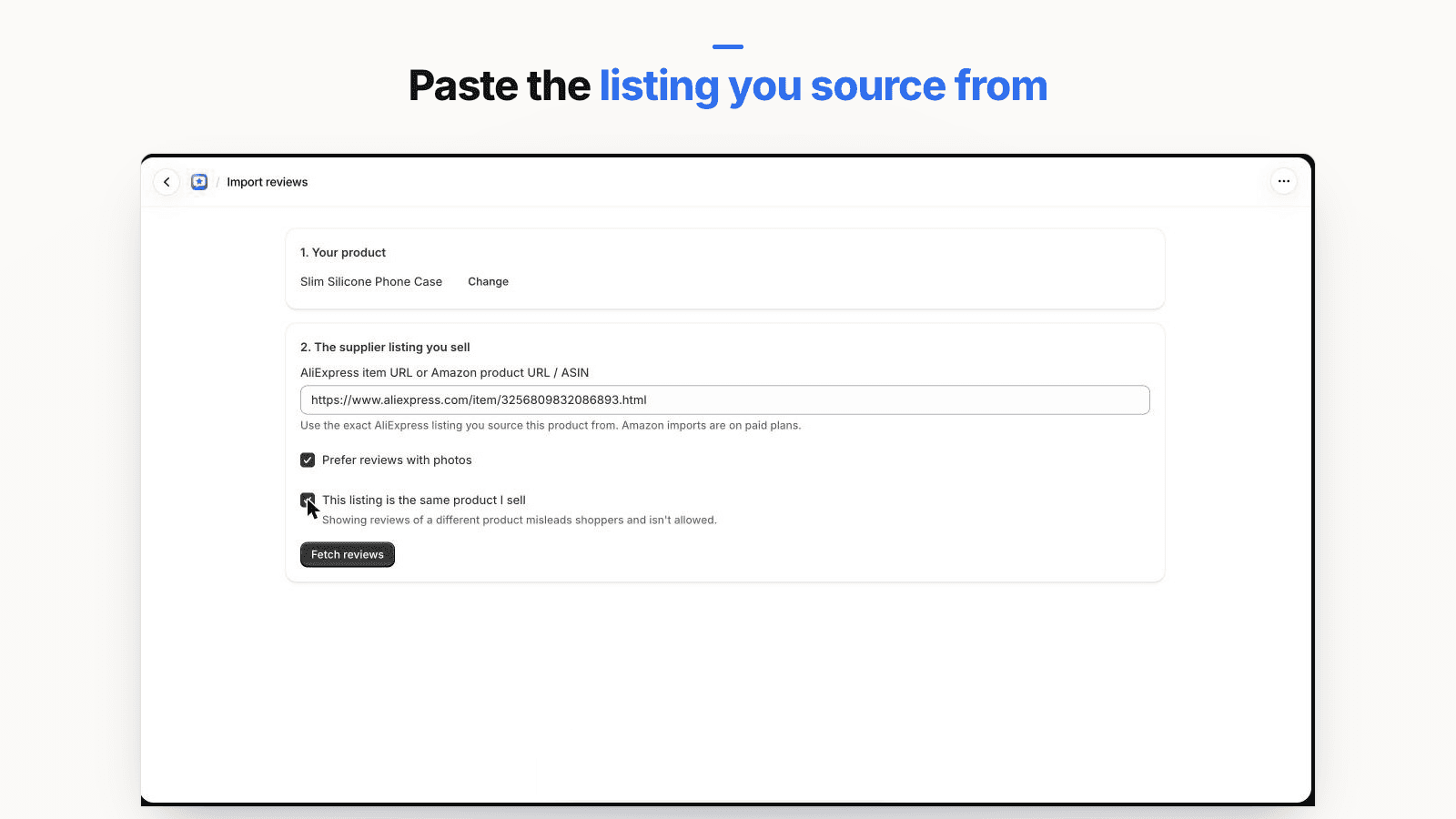
- You paste the AliExpress listing you source from (Amazon listings are available on paid plans, after a one-time acknowledgement that you sell that exact product and are responsible for having the right to display the reviews).
- You confirm the listing is the same product you sell.
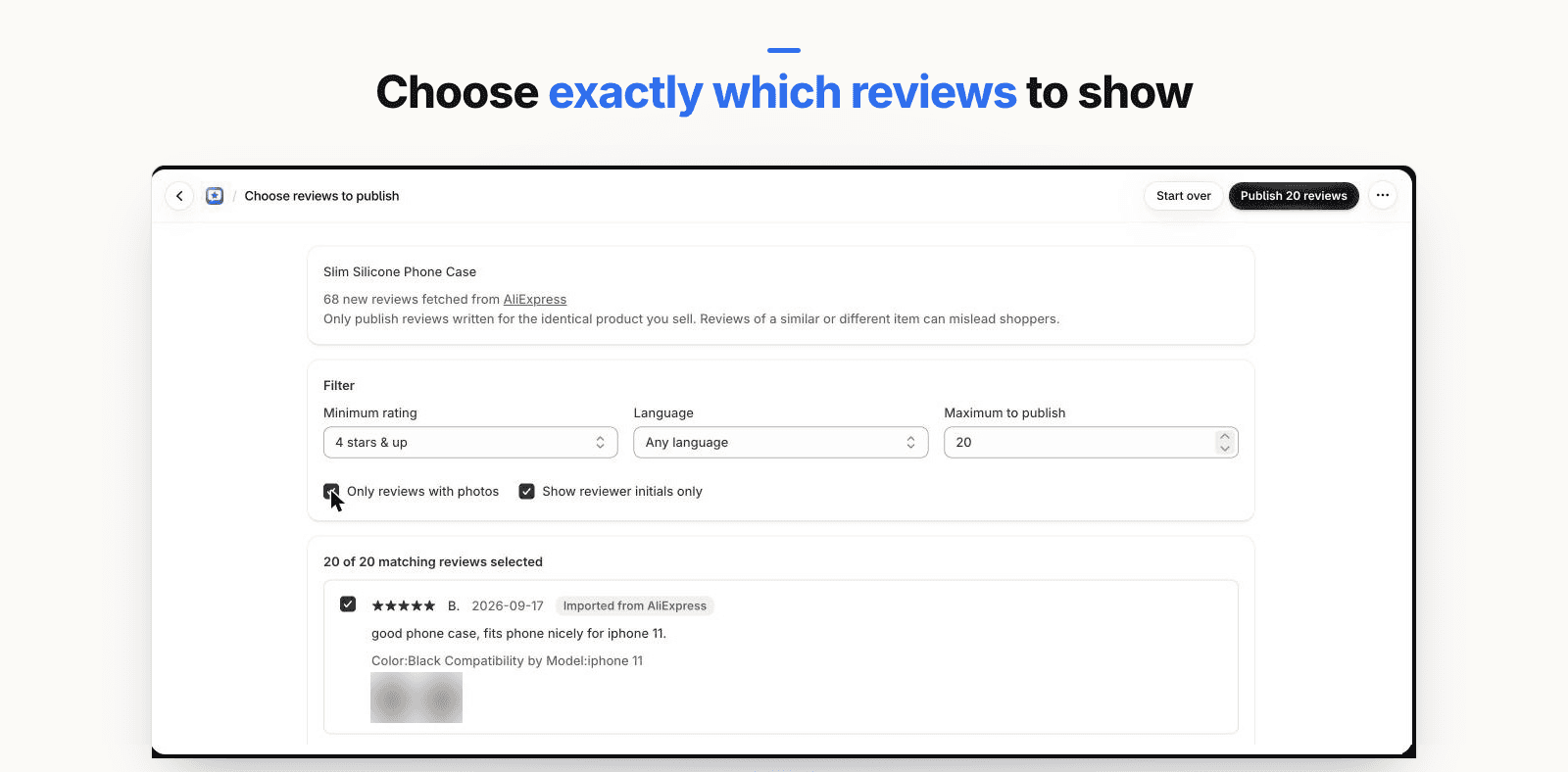
- You filter by minimum star rating, photos only and language, then preview every review before publishing. Reviewer names can be shown as initials. You can also select "Any rating" so critical reviews are included.
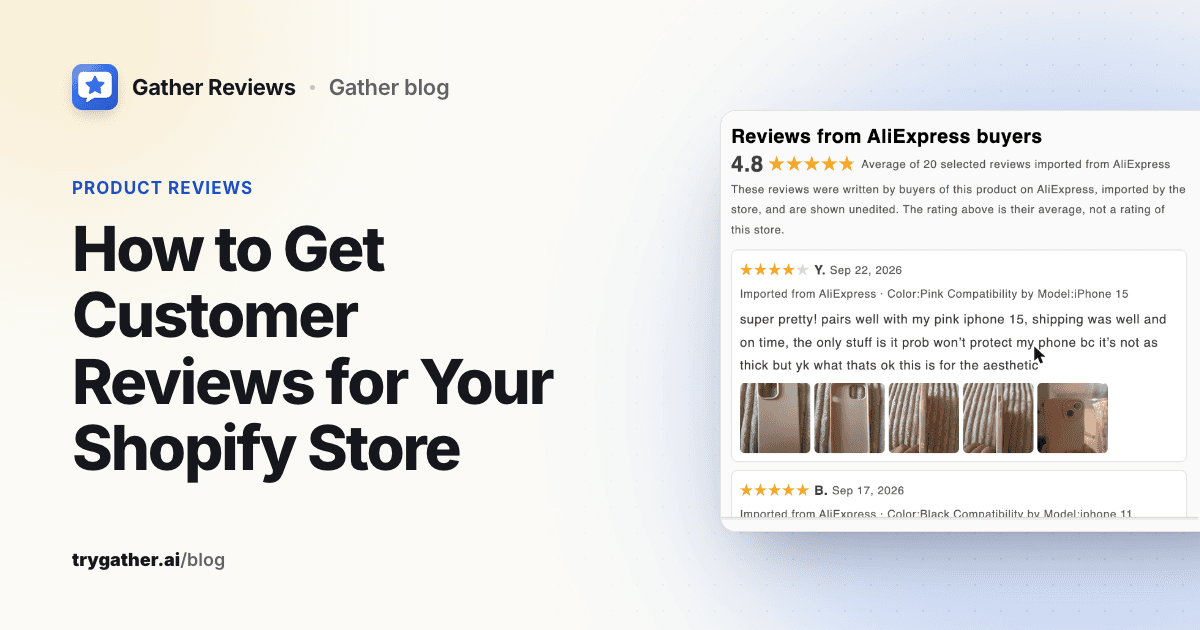
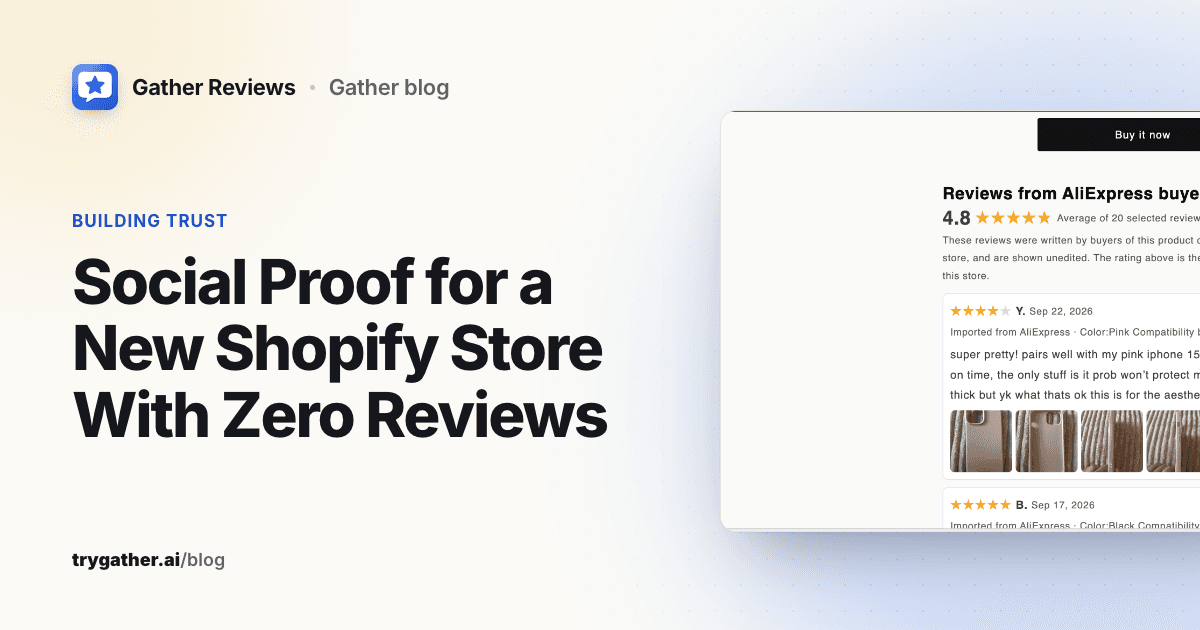
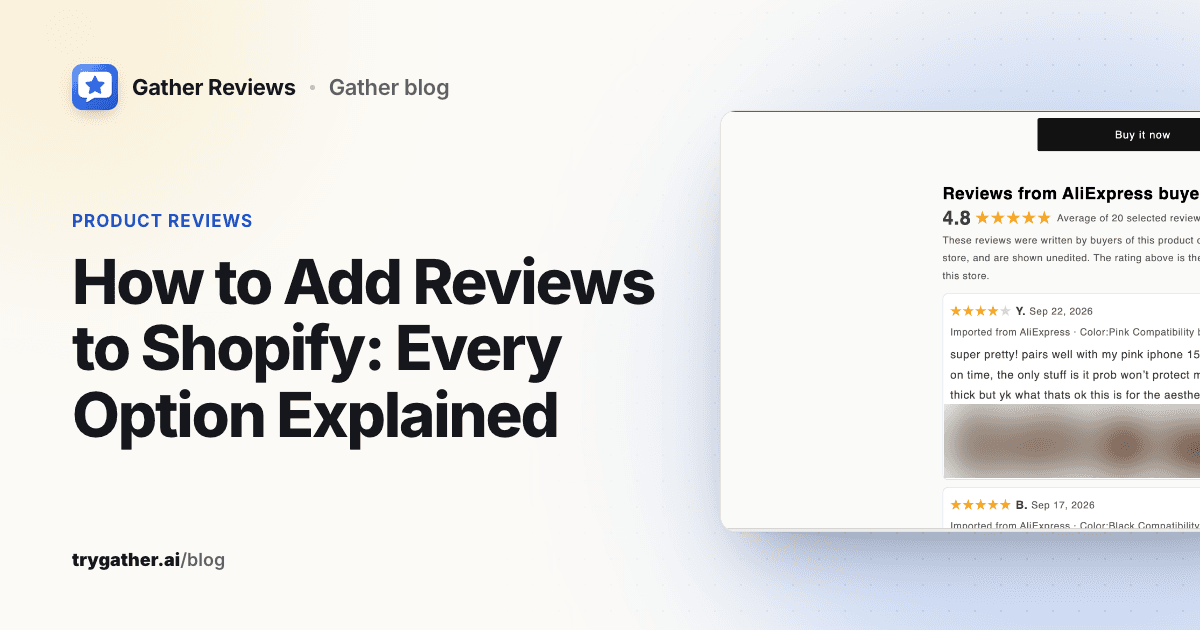
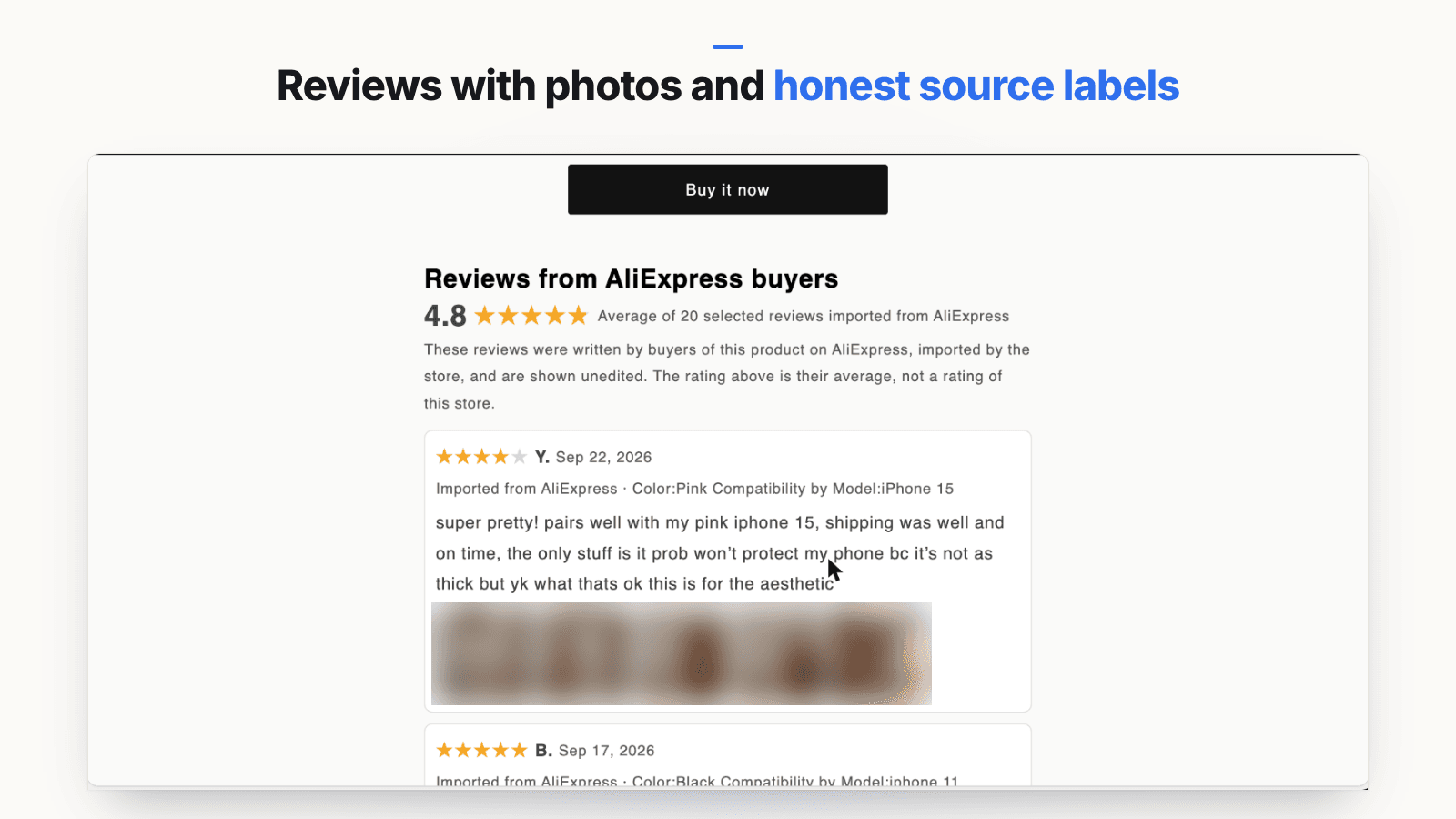
- On the storefront, the section heading defaults to "Reviews from AliExpress buyers" (you can change the heading, but not remove the disclosure), each review carries an "Imported from AliExpress" label, and a disclosure explains the reviews were written on AliExpress, are shown unedited, and that the rating is their average rather than a rating of your store. Marketplace-supplied translations are marked as translations.
- The summary line reads "Average of N selected reviews imported from AliExpress", so a filtered set isn't passed off as the full picture.
- It adds reviews through a lightweight theme app block with no external scripts, and you can hide or delete any review later.
Trade-offs: supplier reviews describe the product, not your shipping times, packaging or support, and shoppers can tell. Treat them as a bridge until your own customer reviews arrive, not a replacement for collecting them.
How to show star ratings on collection pages and in search results
Once reviews are on your product pages, two follow-up questions come up.
Stars on collection pages and product cards
Stars under product titles on collection pages come from your theme's product card, not from the review section. There are two common mechanisms:
- Standard rating metafields. Shopify defines two standard metafields for reviews:
reviews.rating(the average rating) andreviews.rating_count(the number of ratings). Because every app can write the same fields, themes can show stars without knowing which review app you use. Many themes, including Dawn, have a "Show product rating" option in theme settings under product cards that reads them, and some review apps fill them in. - App-specific snippets or blocks. Other apps add their own star badge to product cards, sometimes only on themes they support.
If stars don't appear, check the theme setting first, then your app's documentation. Not every app writes the standard fields, and some deliberately don't. Gather Reviews, for example, keeps imported ratings out of Shopify's standard rating fields, because themes and search engines treat those as your store's own rating. Its stars appear only in its own product-page Star rating block, labeled with the source marketplace.
Stars in Google search results
Review stars in Google come from structured data on the page, and Google's review snippet guidelines set the rules. Two of them matter most for Shopify stores:
- Ratings must come from users, and the reviews must be visible on the page you mark up.
- "Don't aggregate reviews or ratings from other websites." Imported marketplace reviews shouldn't be fed into your product's
aggregateRatingmarkup. Gather Reviews doesn't add review structured data at all.
Review apps that collect first-party reviews usually add Product markup for you. Check it with Google's Rich Results Test after installing, and make sure your theme isn't also outputting a second, conflicting rating.
Which option fits your store
A new store with few orders. Turn on Shop product reviews through the Shop channel, install a review app that collects reviews from your own customers, and send review requests from the first order. If you sell a sourced product that already has reviews on its supplier listing, a labeled import of a few reviews per product can fill the gap while your own arrive. Our post on social proof for a new Shopify store covers other honest signals you can show in the meantime.
A store switching apps or platforms. Export first, then import into the new app with a CSV, keeping dates, wording and verified-buyer flags. Test with a small file before running the full import, and don't uninstall the old app until the new widget is live.
A dropshipper. Your product is identical to the supplier's, so labeled supplier reviews are directly relevant, as long as you import only from the exact listing you ship. Collect your own reviews too: they're the only ones that describe your delivery times and service, and they're what shoppers will trust most over time.
Compliance checklist before publishing any review
Run through this before any review, collected or imported, goes live:
- The review was written by a real person about the exact product it's attached to.
- The text and star rating are unedited. Translations are marked as translations.
- Imported reviews name their source on each review and in the section heading or summary.
- If you filtered reviews by rating, nothing on the page suggests you're showing all of them.
- No reviews from staff, friends or family without a clear disclosure of the connection.
- No discounts or freebies conditioned on leaving a positive review.
- You have the right to display the content under the source marketplace's or platform's terms.
- Structured data only covers first-party reviews that are visible on the page.
The FTC's rule on consumer reviews, in force since October 2024, allows civil penalties for knowing violations. Our explainer on the FTC fake review rule for ecommerce goes through each provision and what it means for a Shopify store.
Frequently asked questions
Can customers leave reviews on a Shopify store without an app?
Not on your online store's product pages. Shopify's own Shop product reviews let verified buyers review products in the Shop app, but those reviews show in Shop rather than in your theme. To collect and display reviews on your own product pages you need a review app that adds a theme app block.
Is it legal to import reviews into Shopify?
Importing reviews you already own, such as exporting them from one review app and importing them into another, is routine. Marketplace reviews are different: the text and photos belong to the reviewers and the marketplace's terms govern how its content can be reused, so read those terms before importing anything, especially Amazon's. Even where reuse is allowed, it's only fair to shoppers when it is the identical product you sell, the text is unedited, every review clearly says where it came from and a filtered set isn't presented as complete, in line with the FTC rule on consumer reviews.
How do I show Google reviews on my Shopify store?
Google Business Profile reviews are about your business, not a specific product, so they belong on a homepage or about page rather than as product reviews. Many review apps and widget apps can embed them. Don't add them to product or organization structured data: Google says pages whose entity controls its own reviews are not eligible for review stars, and it asks sites not to aggregate ratings from other websites.
Why don't star ratings show on my collection pages?
Your theme's product cards only show stars if your review app supports them. Many themes read Shopify's standard product rating metafields for this, and some apps write those fields while others add their own snippet. Check your theme settings for a product rating option and your app's documentation for collection-page stars.
Can I import Amazon reviews to Shopify?
Some importer apps support Amazon listings, but check Amazon's Conditions of Use first: they limit commercial reuse of Amazon's site content, and review text and photos belong to the people who wrote them. If you decide to go ahead, import only from the listing of the identical product you sell, keep the text unedited and label every review as coming from Amazon. Amazon reviews also say nothing about your own shipping or service, so collect your own reviews alongside them.